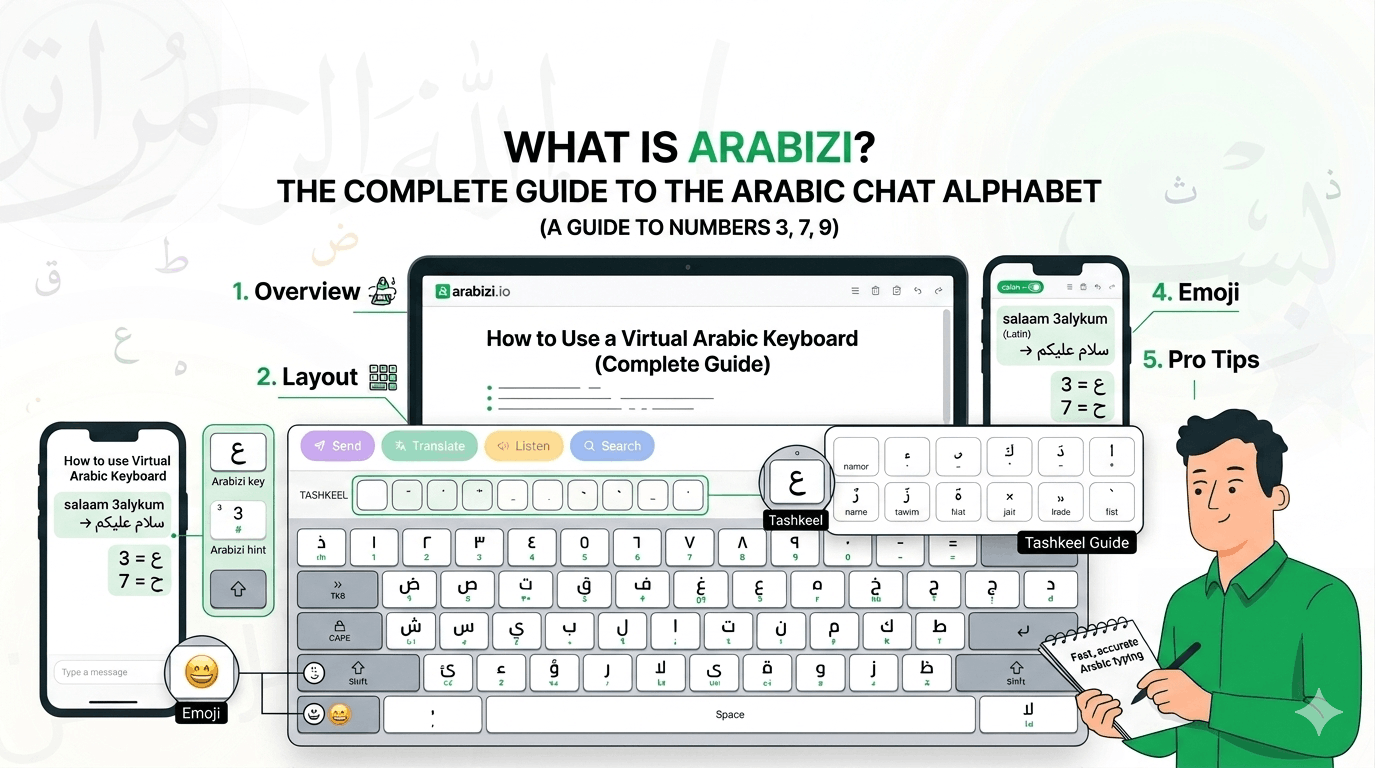
How to Use a Virtual Arabic Keyboard (Complete Guide)
A complete guide to using an on-screen virtual Arabic keyboard — letters, shift-layer diacritics, tashkeel, emoji, and pro tips for fast, accurate Arabic typing.
A virtual Arabic keyboard is an on-screen layout you type with by clicking or tapping — no Arabic letters need to be printed on your physical keys. It's ideal for precise input, learning the layout, and touchscreens. Here's how to get the most out of it.
What a virtual keyboard is good for
- Precision: click exactly the letter you want, including ones hard to reach otherwise.
- Learning: see the whole Arabic layout at once and build muscle memory.
- Public/borrowed computers: nothing to install or configure.
- Touchscreens: tap Arabic letters directly on phones and tablets.
The layout at a glance
The Arabizi.io virtual keyboard mirrors the standard Arabic layout. Each key shows:
- The Arabic letter in its normal state.
- A small Arabizi hint (like
b,sh,3) showing the phonetic equivalent. - A shift character (often a diacritic or punctuation) when Shift is active.
Using the Shift layer for diacritics
This is the part most people miss. On a real Arabic keyboard, short vowels live on the Shift layer. On the virtual keyboard:
- Click Shift (⇧).
- The letter keys switch to tashkeel marks and special characters — for example the top-row keys become fatha (َ), tanween (ً), damma (ُ), and so on.
- Click the diacritic you want; Shift releases automatically after one character.
If hunting through the Shift layer feels slow, use the dedicated Tashkeel row instead — every diacritic is visible and one click away. Full details in our tashkeel guide.
Special keys
| Key | What it does |
|---|---|
| ⌫ Backspace | delete the character before the cursor |
| ⇧ Shift | one-shot switch to the diacritic/symbol layer |
| Caps | lock the shifted state |
| Tab | accept the first autocomplete suggestion |
| 😀 Emoji | open the built-in emoji panel |
| Space / Enter | spacing and new lines |
Pro tips for speed
- Combine methods. Type the bulk of your text with phonetic transliteration, then click the virtual keyboard only for tricky characters or diacritics.
- Use autocomplete. After two Arabic letters, suggestions appear — press Tab or click to complete common words.
- Mind the cursor. Diacritics attach to the letter before the cursor, so position it right before clicking.
- Switch direction if needed. Toggle RTL/LTR for mixed Arabic-and-English lines.
After you type
Once your text is ready, the toolbar lets you copy, translate, listen (Arabic text-to-speech), search Google/YouTube/Wikipedia, or send to WhatsApp, Telegram, X, and Facebook — all without leaving the page.
Try it
Open the free virtual Arabic keyboard and type a word by clicking the letters. Then add a fatha or shadda from the Tashkeel row to see vocalization in action.