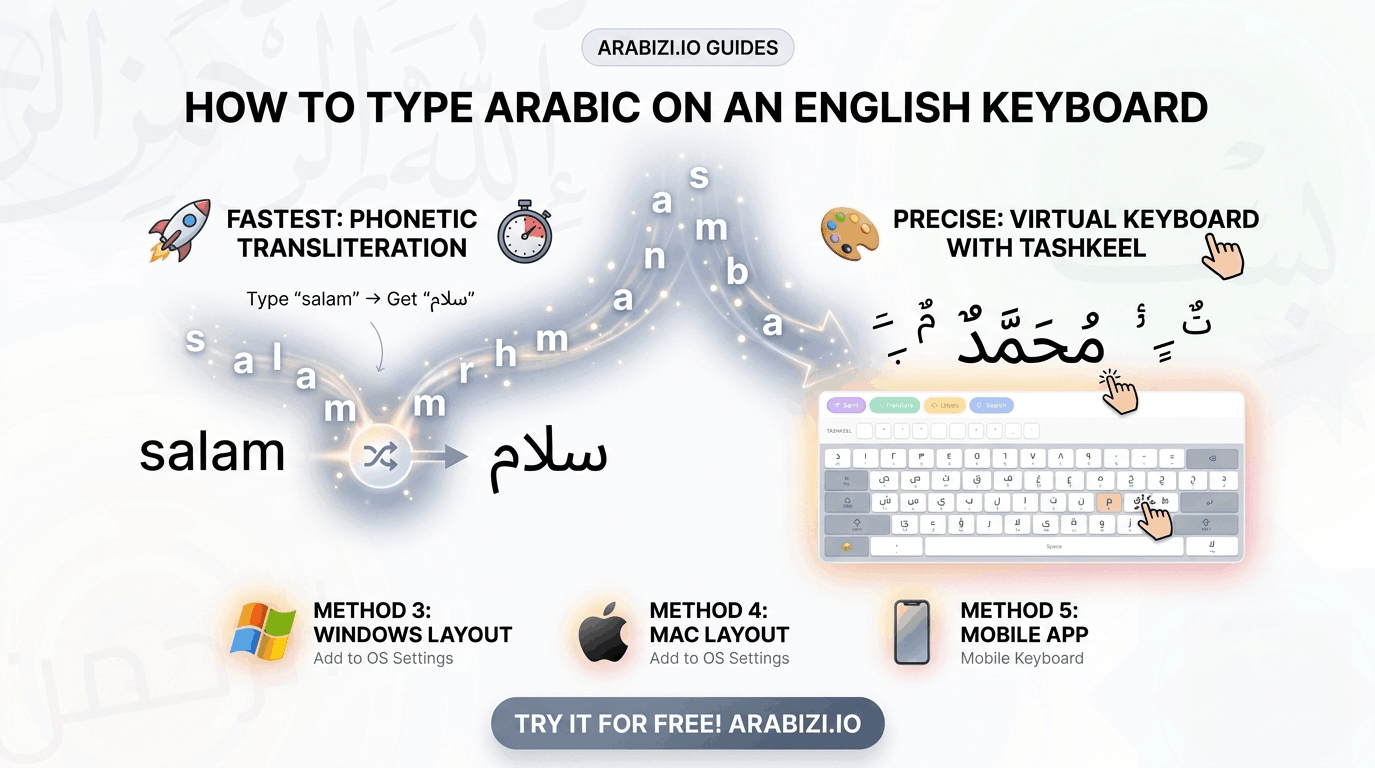
How to Type Arabic on an English Keyboard (5 Easy Methods)
Learn how to type Arabic on a standard English (QWERTY) keyboard using phonetic transliteration, a virtual keyboard, and built-in OS tools — no Arabic keys required.
Millions of people own laptops and phones with only Latin (QWERTY) keys printed on them — yet need to write in Arabic every day. The good news: you do not need an Arabic physical keyboard to write fluent, correctly-shaped Arabic. Here are five reliable methods, from fastest to most permanent.
Method 1: Phonetic transliteration (the fastest way)
Phonetic transliteration — also called Arabizi — lets you type Arabic the way it sounds in Latin letters, and converts it instantly to Arabic script. For example, typing salam produces سلام, and marhaba produces مرحبا.
This is the quickest method because you already know the layout: it's the same QWERTY keys you use for English. With Arabizi.io's free online keyboard, transliteration is on by default — just start typing and watch the Arabic appear in real time.
Best for: chatting, search, quick messages, and anyone who doesn't have the Arabic layout memorized.
Method 2: An on-screen virtual Arabic keyboard
A virtual keyboard shows the full Arabic layout on your screen, and you click (or tap) each letter. This is perfect when you know exactly which Arabic character you want but can't find it on your physical keys.
Our virtual keyboard renders the complete standard Arabic layout, including a dedicated tashkeel (diacritics) row for short vowels like fatha, damma, and kasra. Read our virtual keyboard guide for tips on shift-state characters.
Best for: precise input, learners, and touchscreen users.
Method 3: Add the Arabic layout to Windows
Windows includes an Arabic keyboard you can switch to with Win + Space:
- Open Settings → Time & Language → Language & region.
- Add Arabic as a language.
- Switch layouts anytime with
Win + Space.
The catch: the Arabic letters won't be printed on your physical keys, so you'll be typing from memory. Many people pair this with a printed layout reference until it becomes muscle memory.
Method 4: Add the Arabic keyboard on macOS
On a Mac:
- Go to System Settings → Keyboard → Text Input → Edit.
- Click +, choose Arabic, and add it.
- Toggle layouts from the menu bar or with
Control + Space.
macOS also shows an on-screen Keyboard Viewer so you can see where each Arabic letter sits while you learn.
Method 5: Type Arabic on your phone
Both iPhone and Android let you add an Arabic keyboard in settings, then switch with the globe (🌐) key. If switching keyboards mid-conversation is annoying, transliteration is often faster on mobile too — see our full guide on typing Arabic on iPhone and Android.
Which method should you choose?
| Your situation | Best method |
|---|---|
| You want speed and already type English | Phonetic transliteration |
| You're learning the alphabet | Virtual on-screen keyboard |
| You write Arabic all day | Install the OS layout |
| You're on a borrowed/public computer | Online transliteration (nothing to install) |
For most people, online phonetic transliteration wins — it's instant, requires no setup, and works on any device. Try it now on Arabizi.io and type your first Arabic sentence in seconds.
Frequently asked
Do I need to download anything? No. An online tool like Arabizi.io runs entirely in your browser.
Will the Arabic letters connect properly? Yes. Modern browsers and our engine handle Arabic's contextual letter shaping automatically.
Can I add vowel marks (tashkeel)? Absolutely — see our tashkeel guide.