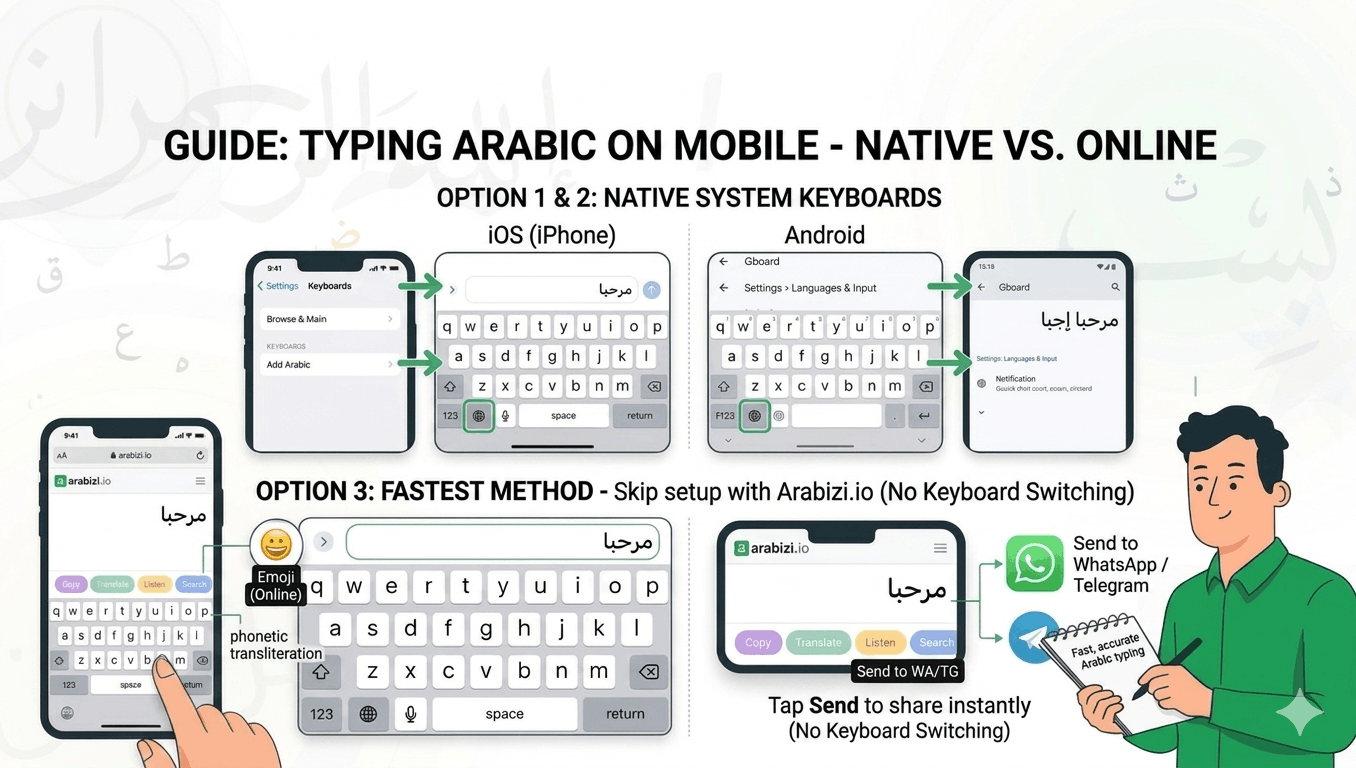
How to Type Arabic on iPhone and Android (Without Switching Keyboards)
Step-by-step guide to typing Arabic on iPhone and Android — add the Arabic keyboard, switch with the globe key, or skip it entirely with online transliteration.
Want to send an Arabic message from your phone? You have two routes: add the built-in Arabic keyboard, or use an online phonetic keyboard that needs no setup. Here's how to do both on iPhone and Android.
Option 1: Add the Arabic keyboard on iPhone
- Open Settings → General → Keyboard → Keyboards.
- Tap Add New Keyboard….
- Choose Arabic (pick your preferred region if prompted).
- To type, tap the globe (🌐) key on the keyboard to switch to Arabic.
iOS will show Arabic letters and predictive suggestions. Tap and hold letters to access related characters and some diacritics.
Option 2: Add the Arabic keyboard on Android
The exact path varies by brand, but generally:
- Open Settings → System → Languages & input → On-screen keyboard → Gboard (or your keyboard app).
- Tap Languages → Add keyboard.
- Search for and select Arabic.
- Switch languages by tapping the globe (🌐) key or swiping the spacebar.
Gboard also supports Arabic transliteration as a layout option — type marhaba and it suggests مرحبا — which is handy if you don't know the letter positions.
Option 3: Skip the setup — type Arabic in your browser
Switching keyboards mid-conversation is clunky, and the Arabic letters aren't where your muscle memory expects them. The fastest option for many people is a phonetic online keyboard:
- Open Arabizi.io in your mobile browser.
- Start typing in Latin letters —
salambecomesسلامinstantly. - Tap Copy, then paste into WhatsApp, Instagram, email, or anywhere.
Because it's phonetic, there's nothing to memorize — you type the way the word sounds. It also includes a tashkeel row for vowels and an on-screen keyboard for precise input.
Which should you use?
- You text in Arabic constantly: add the system keyboard so it's always available.
- You only need Arabic occasionally: use the online tool — no settings to dig through.
- You don't know the Arabic layout: use phonetic transliteration (online, or Gboard's transliteration mode).
Sending the message
Once you've typed your Arabic text, sharing is easy. From Arabizi.io you can tap Send to push it straight to WhatsApp or Telegram — see our guide on sending Arabic on WhatsApp from any device.
Troubleshooting common problems
The Arabic letters show as boxes or question marks. This almost always means the app or font you're pasting into doesn't fully support Arabic. Modern apps (WhatsApp, Instagram, Notes, Gmail) all render Arabic correctly — if you see boxes, update the app or try a different one.
The text is aligned to the left instead of the right. Arabic is a right-to-left (RTL) script, and most apps flip alignment automatically once they detect Arabic characters. If a text box stays left-aligned, add the Arabic text first (before any English), and the app will usually switch direction on its own.
Letters aren't connecting. Arabic letters change shape depending on their position in a word. If they appear disconnected, you've likely typed isolated characters or copied text with stray spaces between letters. Typing on a phonetic tool like Arabizi.io produces correctly connected, properly shaped words automatically.
The globe key doesn't appear. You need at least two keyboards installed for the globe (🌐) key to show up. If you only added Arabic, add or keep your English keyboard too, and the switch key will appear.
Frequently asked questions
Can I type Arabic on my phone without installing anything? Yes. Open a phonetic keyboard like Arabizi.io in your browser, type in Latin letters, and copy the Arabic result into any app. Nothing to install or configure.
Is phonetic typing accurate?
For everyday messages, yes. You type words the way they sound — shukran becomes شكراً — and the engine handles letter shaping and the tricky sounds using number codes like 3 for ع and 7 for ح. See our Arabizi numbers guide.
How do I add tashkeel (vowel marks) on mobile? System keyboards make diacritics awkward to reach. The easiest way is the dedicated tashkeel row on Arabizi.io — tap a letter, then tap the mark you want.
Does this work for both Arabic and Franco-Arabic (Arabizi)? Yes. If you already write in Arabizi (Latin letters and numbers), a phonetic tool converts it to real Arabic script instantly, so you can keep typing the way you're used to.