How to Send Arabic Messages on WhatsApp From Any Device
Type and send Arabic on WhatsApp from any phone or computer — even without an Arabic keyboard. Use phonetic transliteration and one-tap sharing in seconds.
You want to wish someone كل عام وأنتم بخير on WhatsApp, but your keyboard only has English letters. No problem — you can write and send Arabic on WhatsApp from any device in under a minute. Here are three ways.
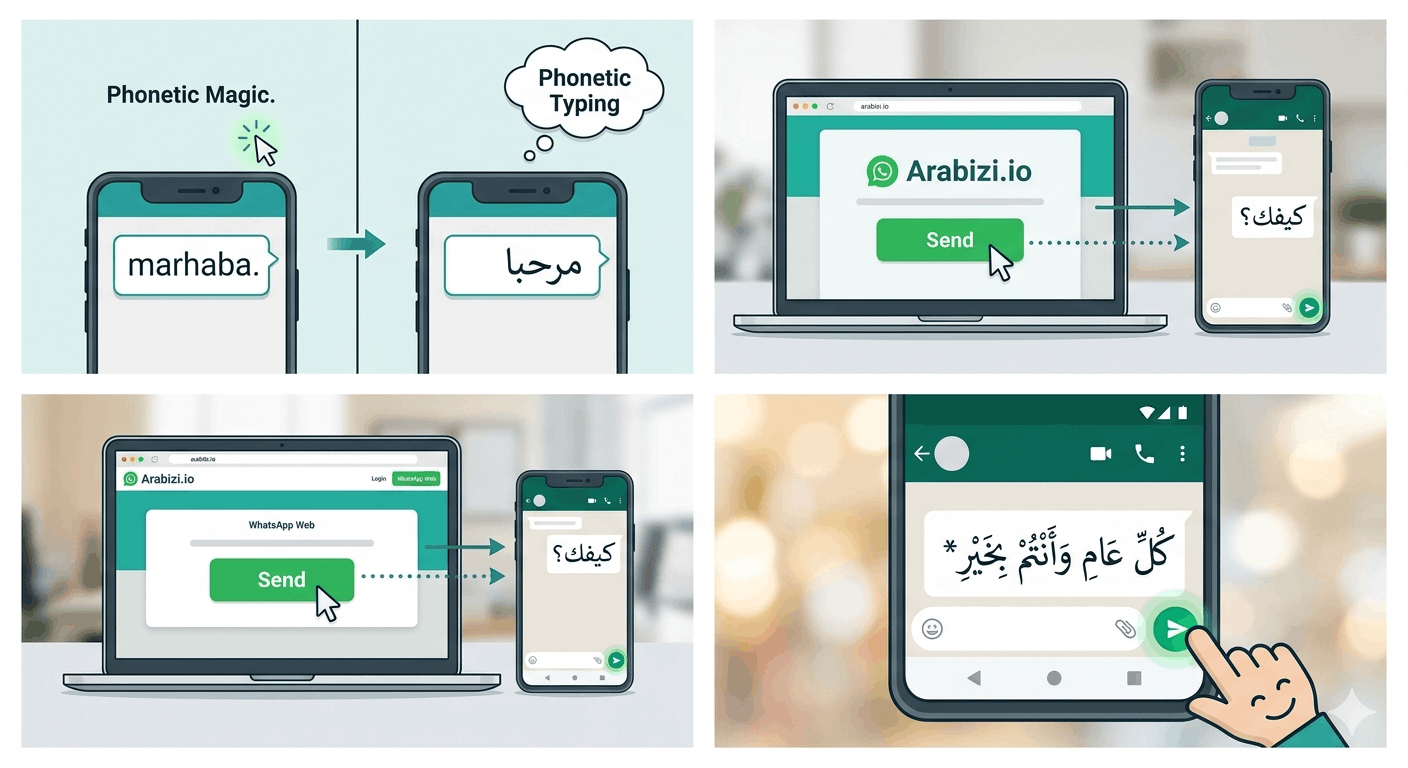
The fastest way: phonetic keyboard + Send
- Open Arabizi.io in your browser (phone or computer).
- Type your message phonetically —
kul 3am wa antum bikhayrbecomesكل عام وأنتم بخيرas you type. - Tap the Send button and choose WhatsApp.
- WhatsApp opens with your Arabic text ready — pick a contact and send.
This works on WhatsApp Web too, which is perfect when you're at a desktop without an Arabic layout installed.
Alternative: copy and paste
If you'd rather paste manually:
- Type your Arabic on Arabizi.io.
- Tap Copy.
- Open WhatsApp, tap the message box, and paste.
Copy-paste is handy when you want to add the Arabic into a longer message or send it to a group.
Using your phone's built-in Arabic keyboard
You can also add the system Arabic keyboard and switch with the globe key — full steps are in our guide on typing Arabic on iPhone and Android. The downside: the Arabic letters aren't where your muscle memory expects, so phonetic typing is usually faster if you don't write Arabic daily.
Will the Arabic display correctly?
Yes. WhatsApp fully supports Arabic script and right-to-left text on all platforms. When you send Arabic, it automatically aligns to the right and connects the letters properly. You can mix Arabic and English (and emoji 🎉) in the same message.
Bonus: add expression
Before sending, you can polish your message on Arabizi.io:
- Add emoji from the built-in panel.
- Add tashkeel (vowel marks) for emphasis or clarity — see our tashkeel guide.
- Use Listen to hear how it sounds before you send.
Quick phrases to try
| Occasion | Arabizi | Arabic |
|---|---|---|
| Congratulations | mabrook | مبروك |
| Happy Eid | 3eed mubarak | عيد مبارك |
| Get well soon | salamtak | سلامتك |
| Miss you | wa7ashtni | وحشتني |
Type any of these on the keyboard, tap Send → WhatsApp, and you're done.
Troubleshooting
My Arabic shows up backwards or left-aligned. WhatsApp detects Arabic and switches to right-to-left automatically. If a message looks off, it's usually because you mixed a lot of English and Arabic — start the message with the Arabic part and it will align correctly.
The letters aren't joined together. Arabic letters connect based on their position in a word. If you paste text that came out as separate, isolated characters, retype it on a phonetic tool like Arabizi.io, which shapes and joins letters for you automatically.
The Send button didn't open WhatsApp. On desktop, make sure WhatsApp Web is open in another tab or that the WhatsApp desktop app is installed. On mobile, the WhatsApp app needs to be installed. If neither is available, use Copy and paste the text in manually.
Frequently asked questions
Can I send Arabic on WhatsApp without an Arabic keyboard?
Yes. Type your message phonetically on Arabizi.io — salam becomes سلام — then tap Send → WhatsApp or copy and paste. No Arabic keyboard needed.
Does this work on WhatsApp Web and desktop? Yes. Both the Send button and copy-paste work with WhatsApp Web and the desktop app, which is ideal when you're on a computer without an Arabic layout installed.
Will the recipient see the Arabic correctly? Yes. Every modern phone and version of WhatsApp renders Arabic script and right-to-left text properly, even if the recipient's phone is set to English.
Can I add vowel marks (tashkeel)? Yes — use the tashkeel row on Arabizi.io before sending to add fatha, damma, kasra, and more for clarity or emphasis.